
Multizone Layouts
Multi-zone layouts allow you to divide your screen into multiple independent areas. Each zone displays different content such as weather, clocks, slideshows, images, videos, or text.
The goal of this document is to guide you through creating your first multi zone layout.
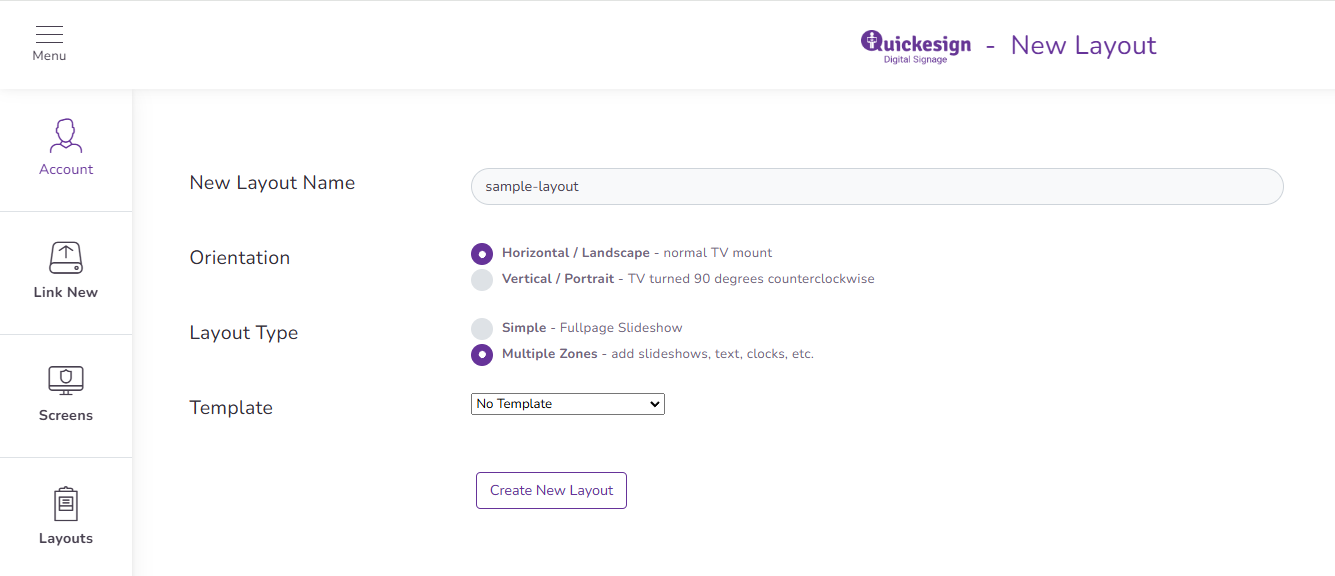
1. Create a new layout.
- Name it something you'll remember.
- Set the Layout Type to Multiple Zones
- Click Create Layout.
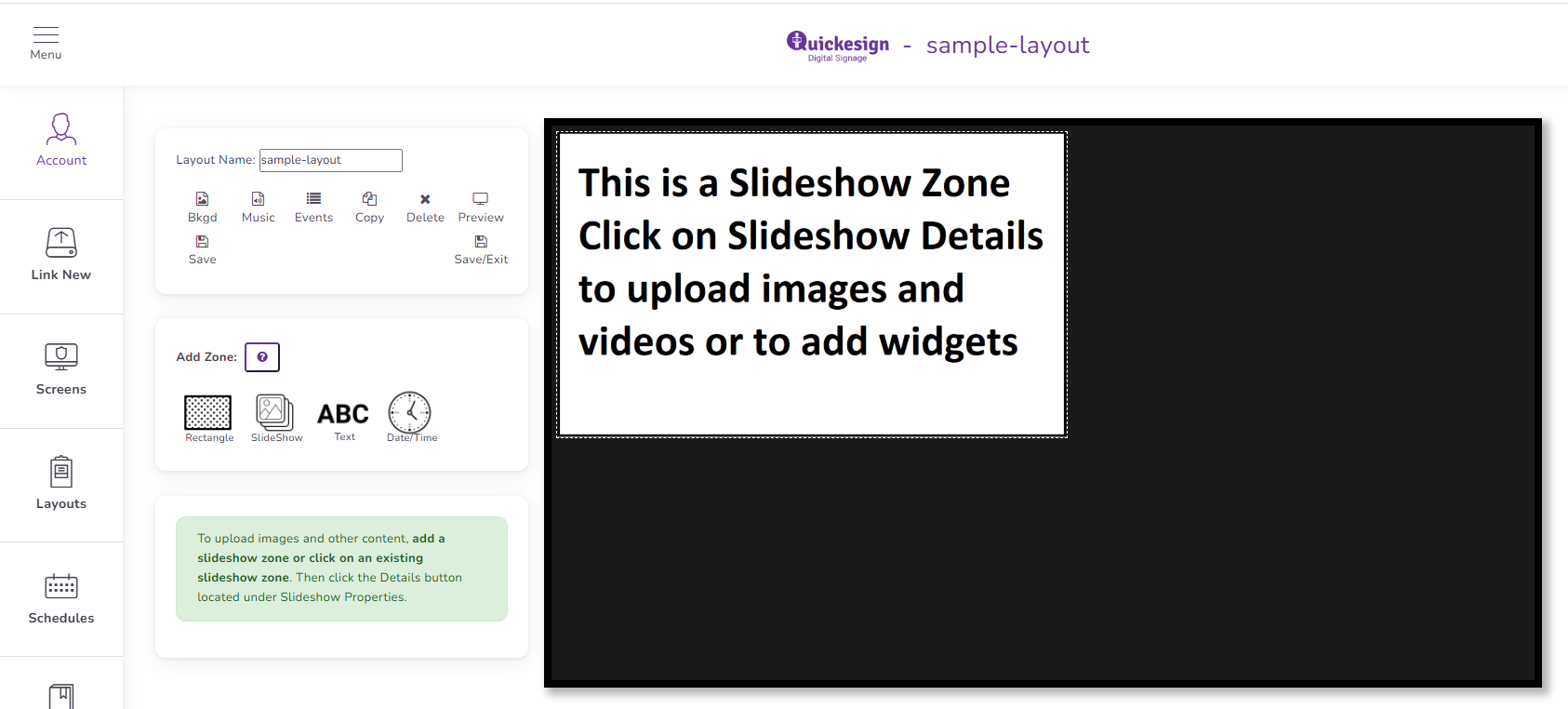
2. Your layout should now look similar to the example below.
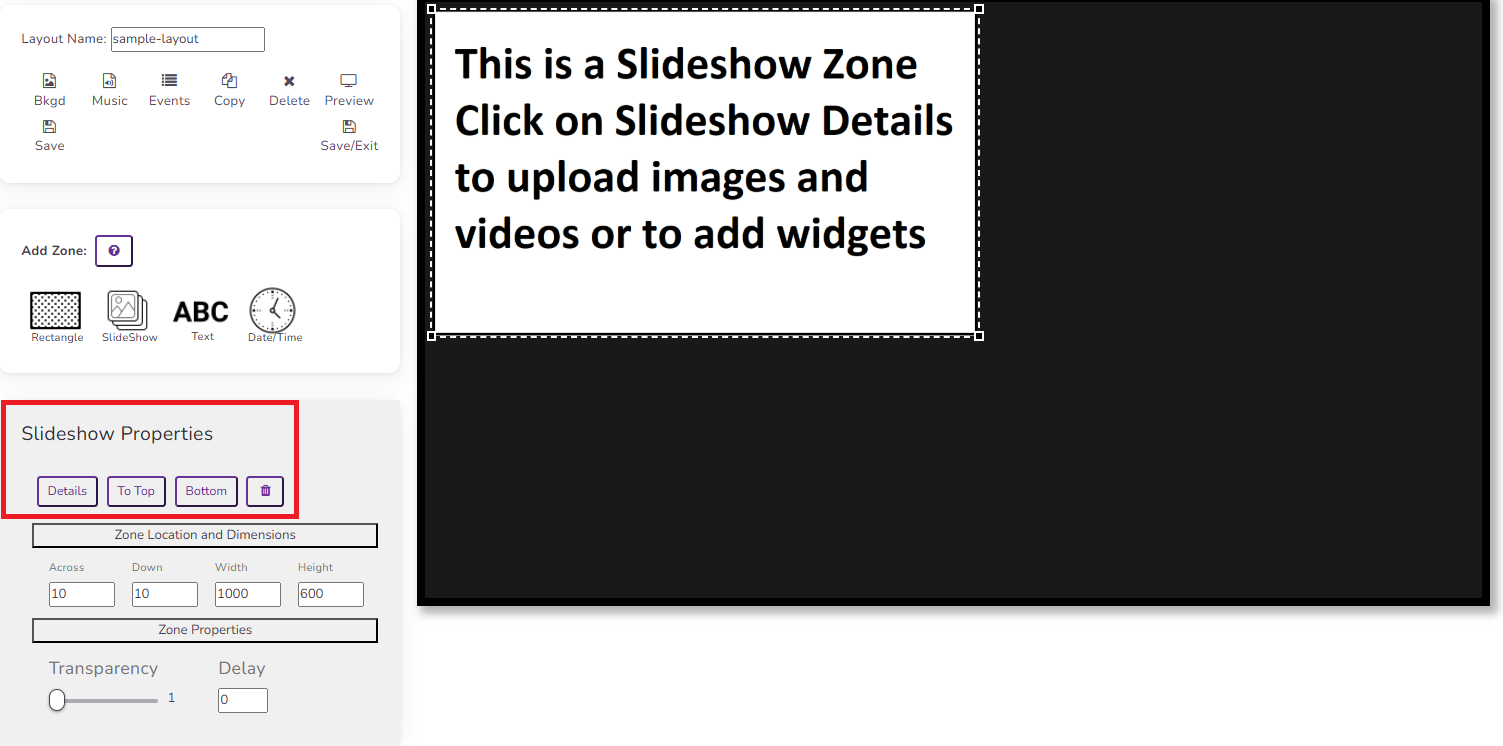
3. Configuring the first zone.
- Click the white zone on the canvas.
- The Slideshow Properties panel will appear on the bottom left.
- This panel allows you to upload your own images, choose content from your library, add widgets, and change zone settings.
- Let’s update the default zone to show the weather. Click the Details button under Slideshow Properties.
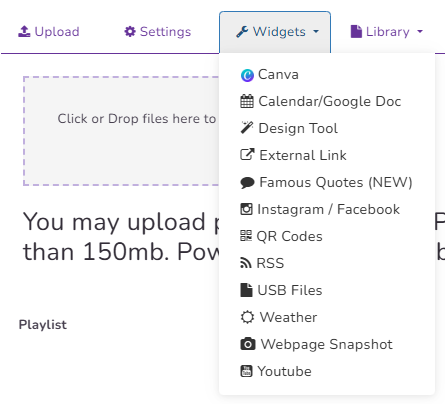
4. Add a Weather Widget.
- Open the Widgets dropdown.
- Select the Weather widget.
5. Configure the Weather Widget.
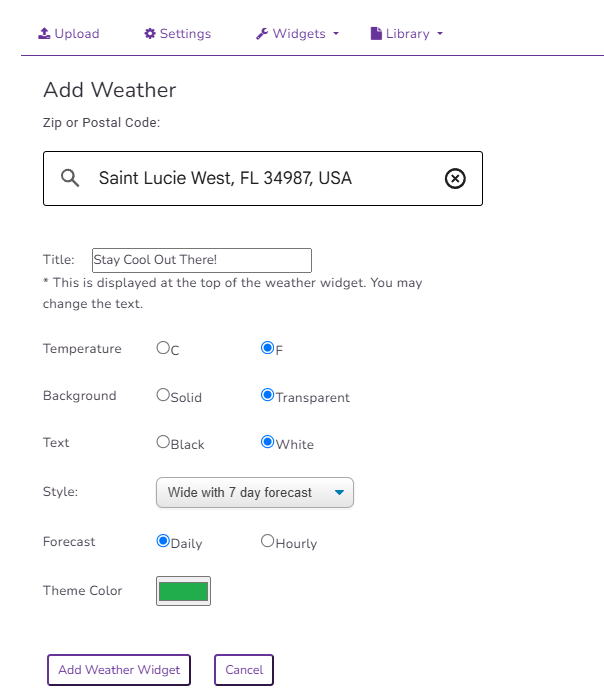
- Enter your zip code so the widget displays your local forecast.
- Change the title and any other settings if desired.
- Click the Add Weather Widget button.
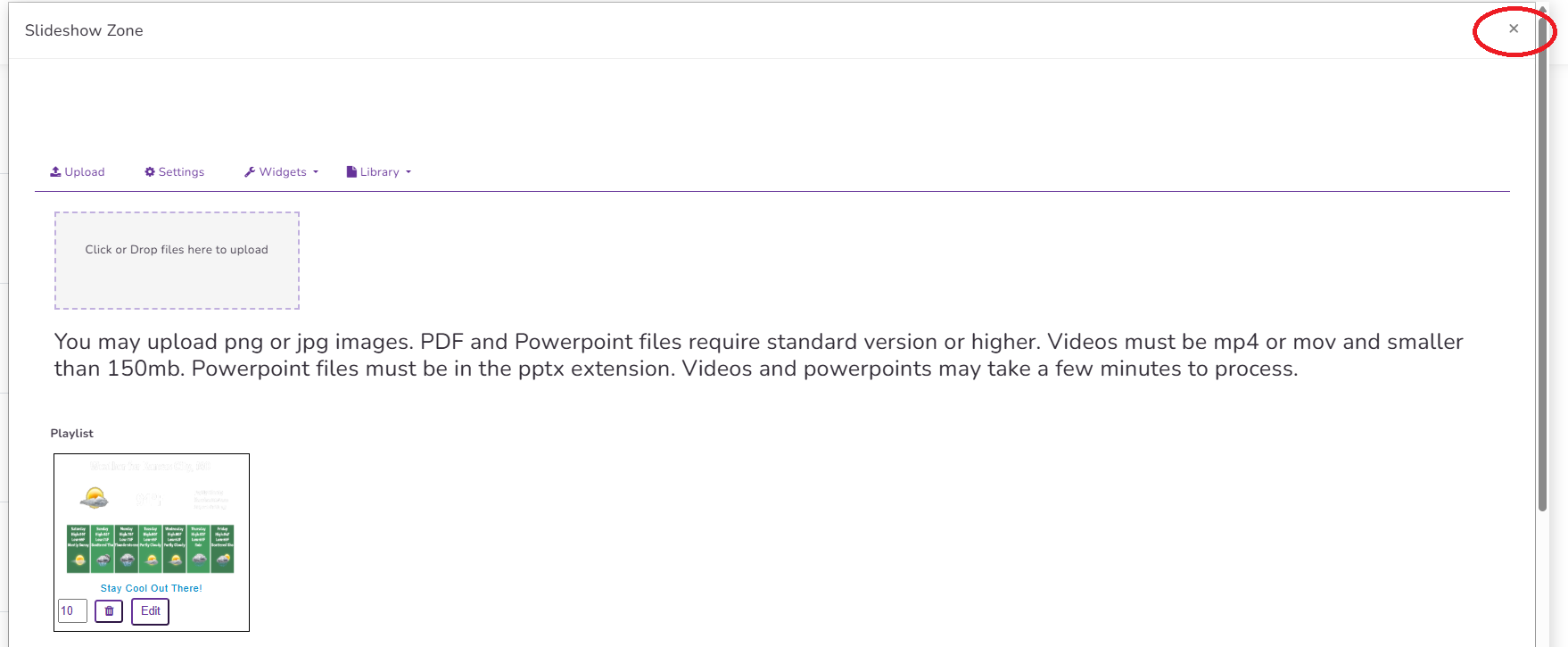
6. Close out of the zone editor tab with the X in the top right corner.
7. Resize and Position the Weather Zone
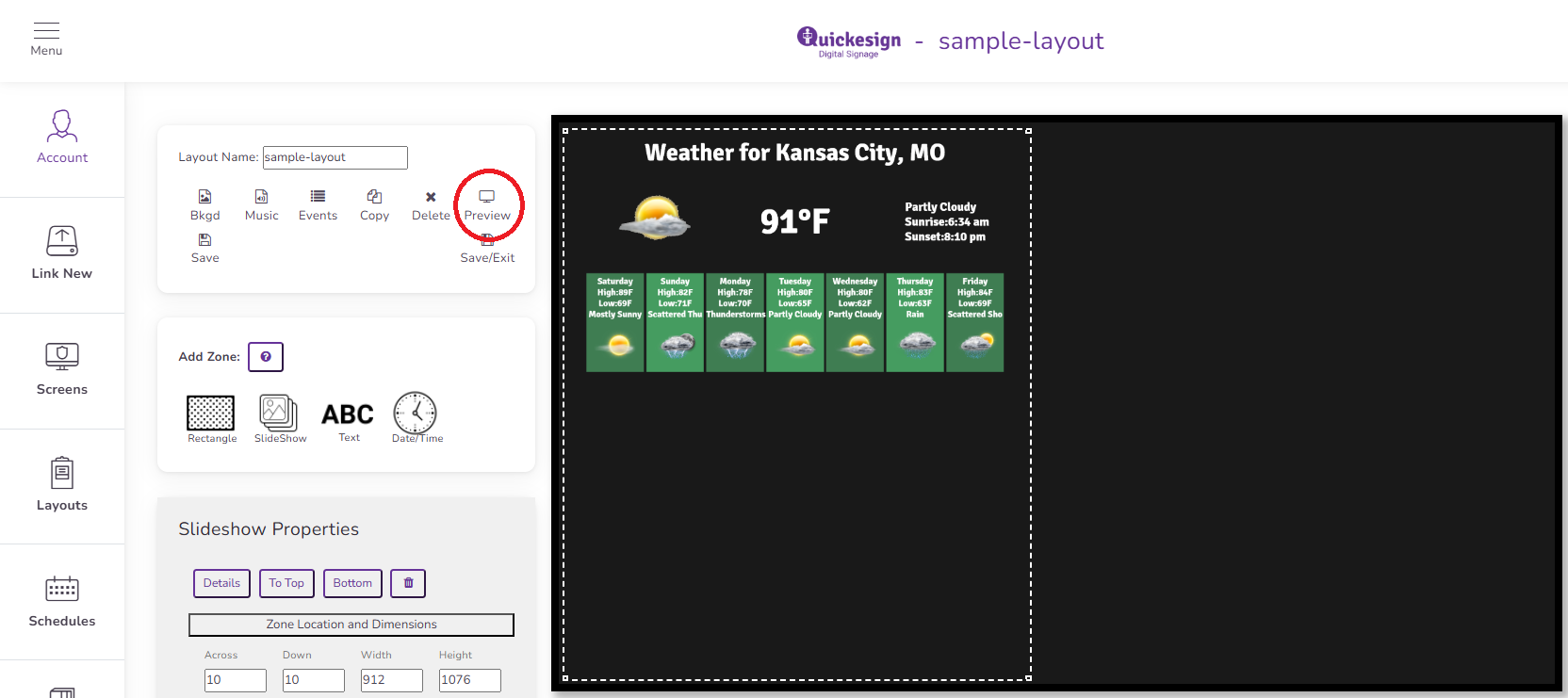
- On the canvas select the weather box and drag the bottom right corner to resize it.
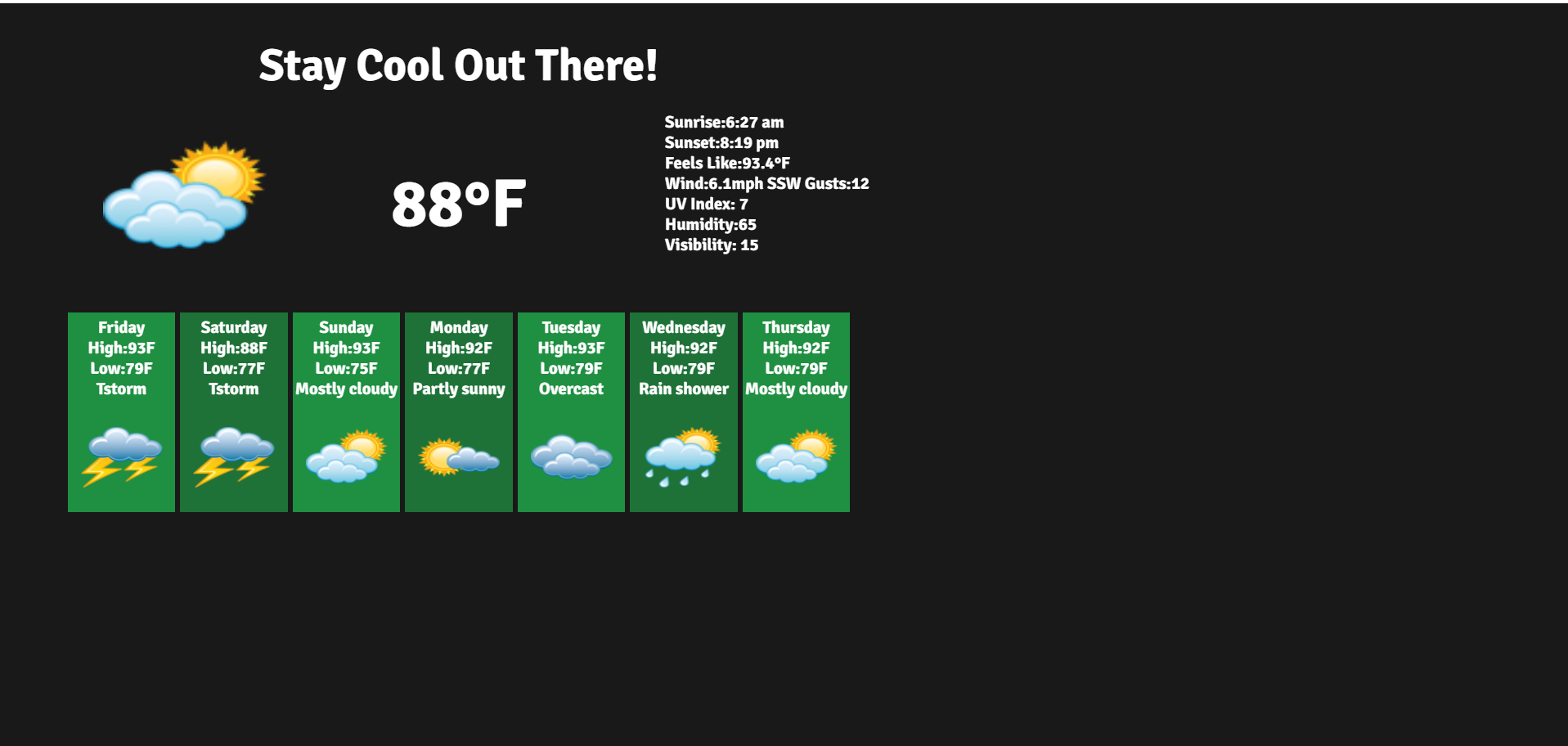
- When you're satisfied with its position, open the Preview to see how your layout is coming together.
8. Add a Clock
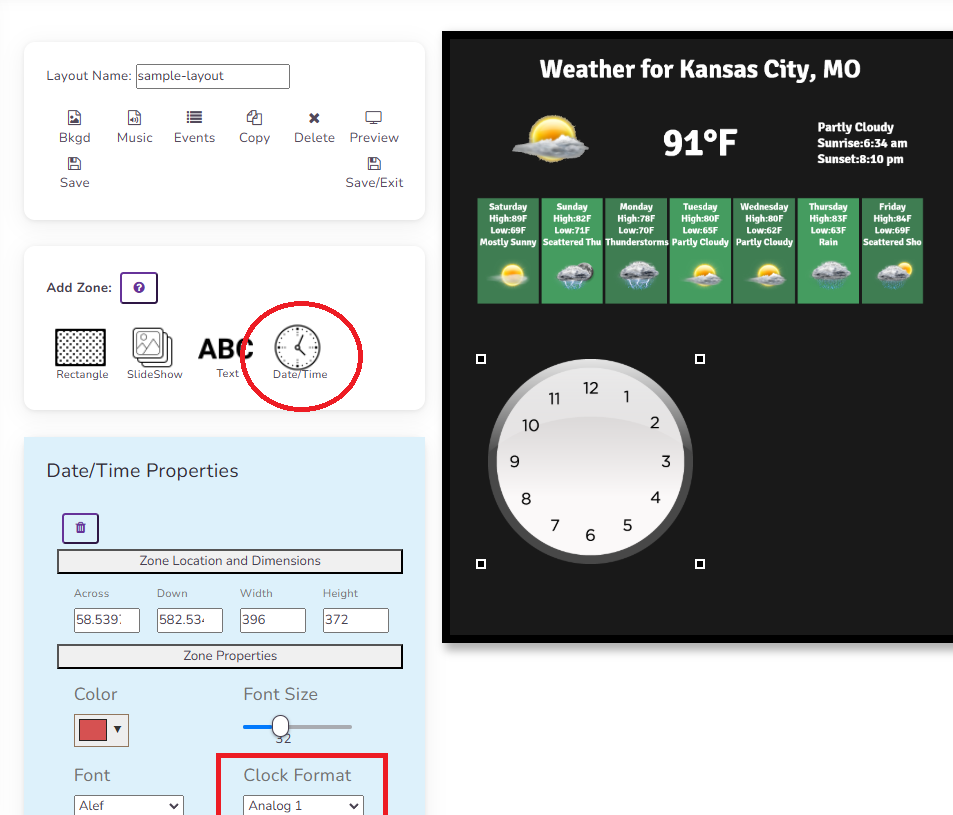
- Select the Date/Time option in the Add Zone box. This will add a clock to your layout.
- Click on the new box and drag it somewhere you like.
- Find the Clock Format in the bottom of the Date/Time Properties section and change it to one of the Analog formats.
9. Add a Text Area
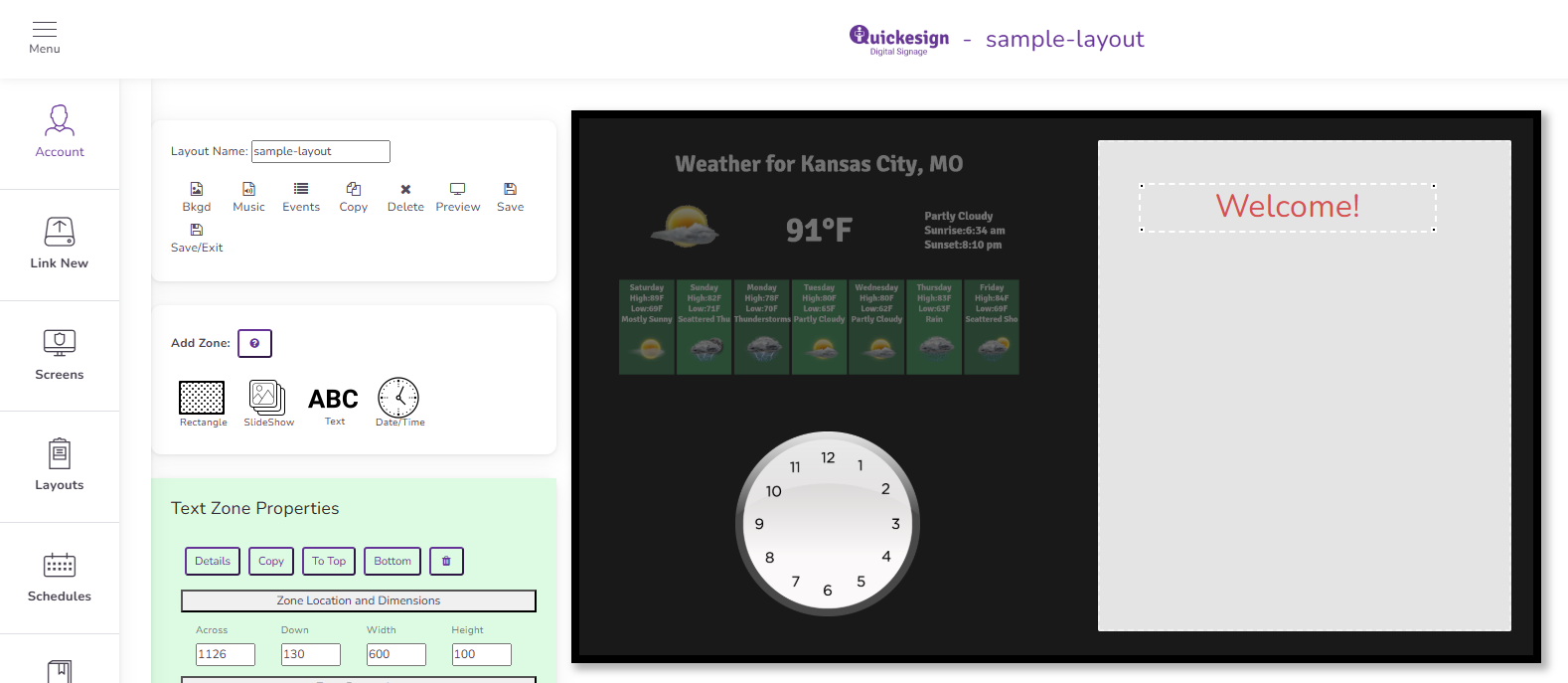
- First create a background for the text.
- Add a rectangle and drag it onto the right side.
- Add a text zone.
10. Add another Slideshow
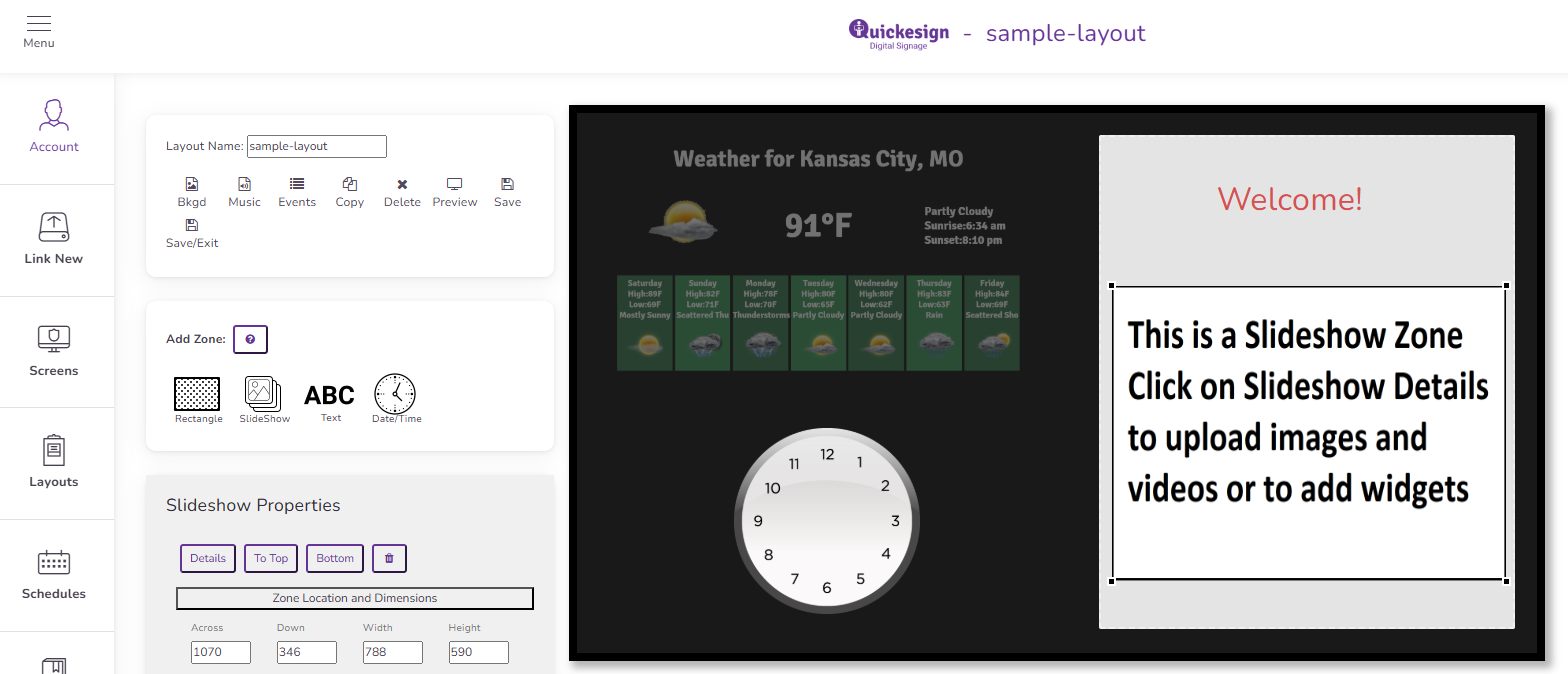
- Add a Slideshow zone beneath the text area.
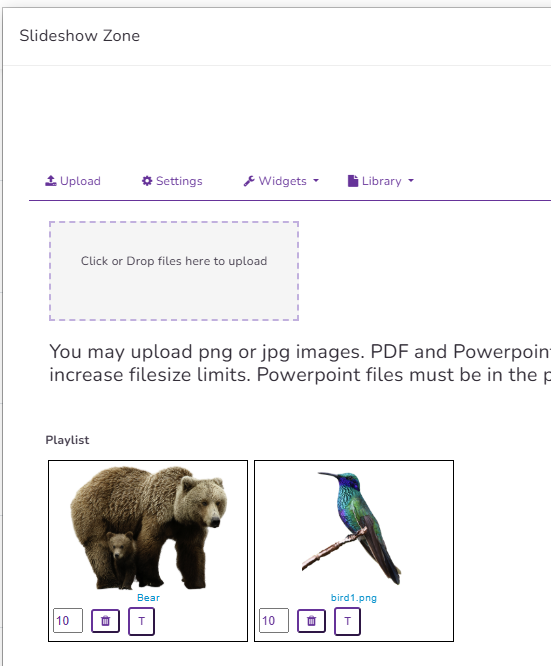
- Click Details to open the slideshow editor
- Add several images from the library or upload your own.
11. Preview
Open the Preview window to view your completed layout.
Your layout should now include:
- A Weather widget
- An Analog Clock
- A Text area
- A Slideshow
Congratulations! You've created your first multi-zone layout.
From here, you can continue customizing your design by resizing zones, changing widget settings, rearranging content, and adding additional widgets to create layouts that fit your specific needs.
Multizone Layout Video:
Next Topic