Quickesign + AI
Create signs, update prices, and manage screens with ChatGPT, Claude, or Muse.
| Quickesign + AI |
Your next sign starts
with a simple request.
Connect ChatGPT, Claude, or Muse to your Quickesign account. Then describe what you want to create or change, from a new menu board to a quick price update.
|
|
Less clicking.
More creating.
Your AI assistant works with the layouts and screens in your own Quickesign account. Give it the details, review the result, and tell it where to play.
|
|
TRY A REQUEST LIKE THIS
“Create a coffee menu with eight sample drinks. Use a warm, modern style and show me a preview.”
|
|
Update simple layouts and more complex multizone layouts.
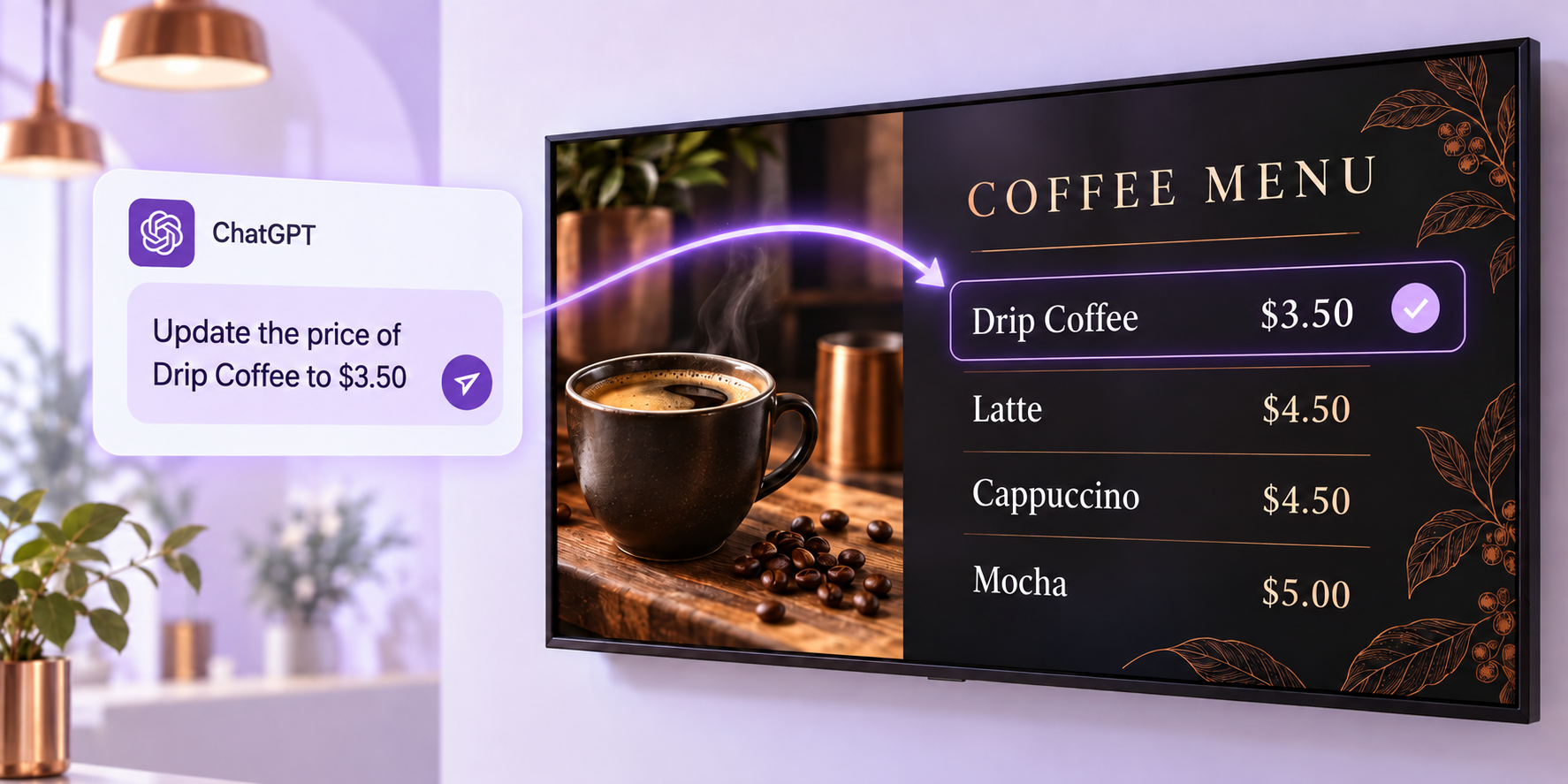
Try a multizone update:
“Update the price of Drip Coffee to $3.50”
|
| What can you do? |
| 1. | Create a sign from an idea.
Build menu boards, promotions, welcome screens, and more. |
| 2. | Make everyday updates faster.
Change prices, replace text, swap images, or copy a board for another location. |
| 3. | Preview and refine.
Ask for a preview and a check for cut-off text, poor contrast, or overlapping items. |
| 4. | Manage what plays, and when.
Check screen status, assign layouts, schedule content, and refresh your screens. |
|
| Choose your AI assistant |
|
Follow the connection guide for the assistant you use:
ChatGPT + Quickesign Set up a custom connection. | |
| |
| |
Claude + Quickesign Use the Quickesign directory connector. | |
| |
| |
Muse + Quickesign Connect your account and start creating. | |
| |
What you need
• A Standard, Pro, or Enterprise Quickesign subscription.
• An AI account with ChatGPT, Claude, or Muse.
Your AI account must support connectors. Availability and permissions vary by assistant and workspace.
|
|
|
A good first request: “List my Quickesign screens and tell me what is playing. Do not make any changes.”
Questions or suggestions? Reply to this email or contact mike@quickesign.com.
Thank you,
The Quickesign team
|
|