
Power BI
Adding a Power BI report to your display
You can show a live Power BI report right on your Quickesign Digital Signage. Once it's connected, your screen keeps showing the latest version of your report automatically.
This guide walks you through it step by step. It takes just a few minutes.
Before you start
You'll need:
- A Power BI account you can sign in to (the same email and password you use at powerbi.com). Your account needs a Power BI Pro license. A free trial works too.
- At least one report already saved in Power BI. If you can open a report at powerbi.com, you're ready. If you haven't made one yet, do that first in Power BI, then come back here.
Make sure your web browser allows pop-up windows for this site. The sign-in screen opens in a small pop-up, and some browsers block those by default.
Step by step
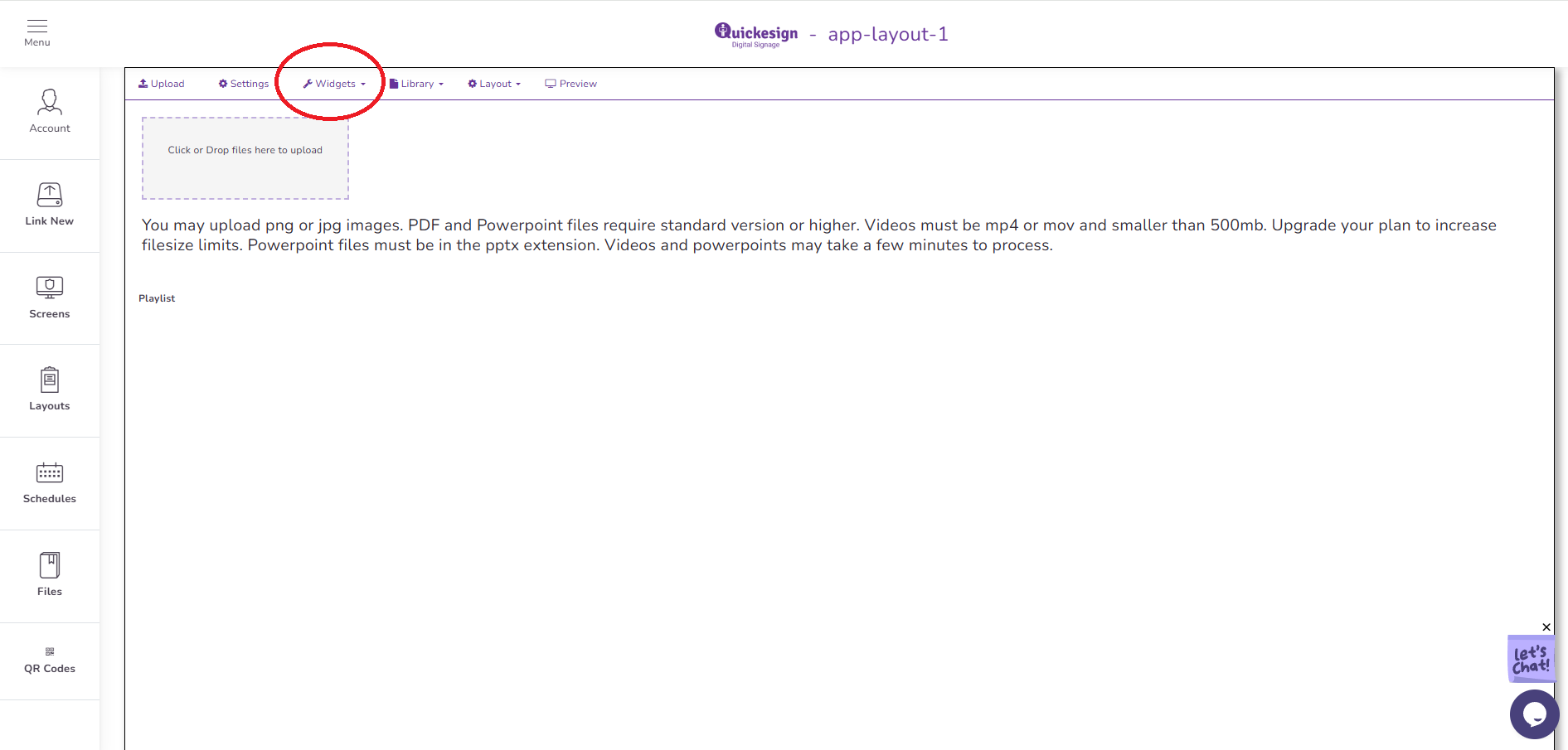
1. Open the layout that will have Power BI reports.
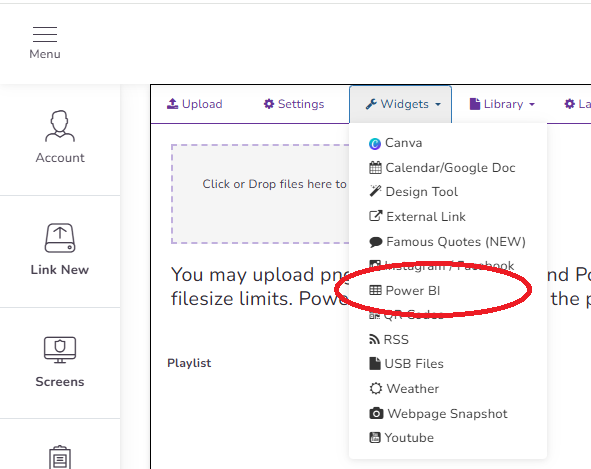
2. Click Widgets and then Power BI
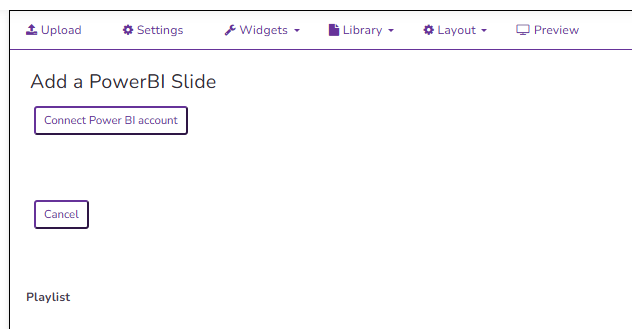
3. Click Connect Power BI Account
4. In the pop-up, sign in with your Power BI (Microsoft) email and password. Use the same account you would at powerbi.com. If you're already signed in on your computer, you may just be asked to pick which account to use.
5. Make sure you choose the account that has your reports.
6. Allow access
7. Microsoft will ask if you want to let Quickesign view your Power BI reports. Click Accept.
This permission is view-only. Quickesign can display your reports, but it can never change, delete, or share anything in your Power BI account. You only have to do this once.
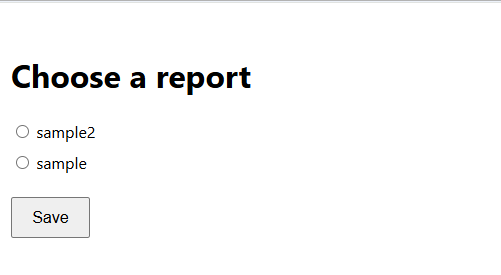
8. You'll see a list of all the reports in your account. Click the one you want to show on your screen, then click Save. You can change this later if you want to show a different report.
9. The pop-up closes on its own and your report is now connected. Your display will start showing it shortly, and it will stay up to date automatically from now on.
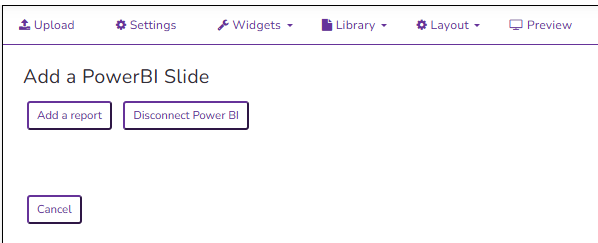
10. Now that you're connected to your Power BI account you will see the option to Add a report. This will allow you to add any other reports without having to sign in again.
Troubleshooting
The pop-up didn't open.
Your browser probably blocked it. Look for a small "pop-up blocked" icon in your browser's address bar, choose to allow pop-ups for this site, and click "Connect Power BI account" again.
No reports were found on this account.
This usually means one of two things:
- You signed in with the wrong account. Start over and pick the account that has your reports.
- You don't have any reports saved in Power BI yet. Create and save one at powerbi.com first, then try again.
I signed in with the wrong account.
Just click "Disconnect Power BI" and then connect again with the correct account this time. The new choice replaces the old one.
My screen says the report needs to be reconnected.
For your security, Microsoft occasionally asks you to sign in again. For example, after you change your password, or if your company's security settings require it. When that happens, simply go back and click "Connect Power BI account" again to reconnect. Your report and settings are remembered; you just need to sign back in.
The report shows up blank or looks wrong on the screen.
Open the same report at powerbi.com to make sure it's loading correctly there. If it looks fine at powerbi.com but not on your display, reconnect using the steps above.
Next Topic